Quality IT, Advice, Support and Delivery

Showing posts with label Microsoft. Show all posts

Thursday, 17 March 2016

SQL Server 2005 End Of Life

Last year we saw Microsoft retire Windows Server 2003 and this year will see Microsoft retire yet another product. SQL Server 2005 is the latest Microsoft product nearing its end of life date of April 12, 2016.


What does End of Life mean for end users?
Every product we use is likely to have a lifecycle, and Microsoft products are no different. All that Microsoft mean by the end of life of any of their products, SQL Server 2005 included, is that Microsoft will no longer support the product. Ultimately this means that Microsoft will no longer provide automatic fixes, updates or online technical support for retired products.

After April 12, 2016 SQL Server 2005 will no longer receive assisted technical support from Microsoft, software and content updates or the security patches that help provide protection from harmful viruses, spyware and other malicious software, thus resulting in an insecure and unstable infrastructure for your business. Not migrating away from SQL Server 2005 will expose you to an elevated risk of cybersecurity dangers or malicious attacks.

What are the options?
Literally speaking you have two options, you can upgrade to a newer version of SQL Server or you can continue to use an unsupported SQL Server 2005. However it is highly advisable that you do upgrade, not only for security reasons, but also because continuing to use an outdated system can cause compliance issues and end up costing a small fortune in maintenance costs.

Why upgrade?
Continuing to use out of date software poses potential security risks and is likely to make you a prime target for hackers, as it is easier for cyber criminals to exploit vulnerable software. After April 12, 2016 it is highly likely that you will need to invest in extra security to protect the vulnerable SQL Server 2005, and the cost for maintaining aging hardware will continue to increase with time. Another key reason to upgrade is compliance, many compliances require up-to-date, patch databases, just like they do with the operating system.

Additionally software has progressed since the release of SQL Server 2005 and so there are significant improvements and features that have been added to newer versions of SQL Server. For example SQL Server 2014 provides higher availability and scalability, with dramatic performance improvement, compared with the soon to be outdated SQL Server 2005. The benefits of upgrading to a modern data platform far outweigh the costs of maintaining security, support and compliance for an unsupported database.

Act Now – Upgrade
Upgrading is an opportunity to provide new value to your business, by enabling you to achieve breakthrough performance.

Here are the three key steps for upgrading away from SQL Server 2005:  discover, target and upgrade. 

Step 1 – Discover:
It is highly recommended that you start by determining which applications are running SQL Server 2005. This process can be done using the Microsoft Assessment and Planning Toolkit or by collaborate with Practical Networks, a Microsoft Partner, who will be able to assist with the whole
upgrade.

Step 2 – Target:
In this step you need to determine a migration destination for each application, whether on-premises, virtualized or in the cloud. The choice of destination will be driven by factors such as speed, ease of migration, cost and desired functionality, with the most common choice being Windows Server 2012 R2.

Step 3 – Upgrade:
The final step is to plan and execute the upgrade, this may require additional assistance. Such assistance is available from Practical Networks a trusted Microsoft Partner.

If you would like more information or any assistance with your upgrade, please do not hesitate to get in touch with either David Philps or Andy Potts on 01723 587240.

Thursday, 14 January 2016

What is Office 365?

What is Office 365:
Office 365 is a Microsoft subscription plan that includes access to Office applications and other productivity services that are enabled over the internet (Cloud Services). These services include Lync web conferencing and Exchange online hosted email for business, and additional online storage with OneDrive. Office 365 is available in business and enterprise tiers, where each tier offers various plans with varying features and functionality.

Business-class Mobile Apps:
With an Office 365 for Business subscription, you get mobile apps that help you get more done from your favourite device while keeping your data secured. Office 365 provides built-in security and tools to manage access across phones and tablets. You can apply device-specific security policies with ease, allowing you to ensure that data is synced and accessible on authorised devices only. Office 365 also allows you to wipe data remotely from selected devices.
Office 365 provides a consistent experience across devices for storing, sharing and updating your Office documents, while keeping content and formatting intact.  With 1TB of cloud storage with OneDrive for business you have plenty of file storage.

Security:
Office 365 is a secure service, designed following the Microsoft Security Development Lifecycle. Microsoft brings together the best practices from two decades of building enterprise software and managing online services, to give you integrated software-as-a-service solution.
Office 365 uses a defence-in-depth approach to provide physical, logical, and data layers of security features and operational best practices. Office 365 gives you enterprise-grade, user and admin controls to further secure your environment.
Additionally Office 365 offers privacy controls, allowing you to configure who in your organisation has access and what they can access.

Up-to-Date:
Office 365 stays up to date, so you’ll always be working with the latest version of your Office applications, without any extra upgrade cost. In addition Office 365 takes care of all the installing, updating and making sure everything stays in sync, so that you can spend your time working. Also, because your files are automatically saved online, you can access, edit and share the latest versions, even on the go.

Business Benefits:
• Anytime, anywhere access to emails, documents, contacts and calendars, on any device.
• Complete offering of solutions, including desktop productivity apps, online portals, e-mail, voice mail, web conferencing and unified messaging.
• Simple to use communication and collaboration with colleagues and partners.
• Integrates seamlessly with Microsoft Office and other Microsoft programs.
• Flexible pricing options that gives you predictability and flexibility for all or part of your organisation.
• Business-class service, including IT admin phone support, financially backed 99.9% uptime guarantee, geo-redundant data centers, disaster recovery, robust security, privacy controls and standards.


For more information about Office 365 and the plans available, or to set up a trial, contact us on 01723 587240.

Thursday, 28 May 2015

Windows Server 2003 Migration Planning

Windows Server 2003 end of life is the perfect excuse for business innovation, so why not take advantage of the opportunity. Migrating away from Windows Server 2003 allows you to update your system and take full advantage of the updated features available with newer software. The migration solutions available offer new data center automation and a flexible infrastructure that breaks through the traditional boundaries of storage, virtualisation and identity, while providing an application platform to support the growing demands of today’s businesses.

As you may have read in our Windows Server 2003 End of Life post, there are a number of other reasons why it is ideal for businesses to migrate before the end of life date of July 14, 2015. Migration is a lengthy process and will take a lot of planning and preparation; however it is worth the time and effort. Migrating will help you achieve concrete benefits such as; improved performance, reduced maintenance requirements and increased agility and speed of response. 

Migrating – Where to start:
As a Microsoft Partner we recommend using the following four stages to plan your migration:     
      Ã¼  Discover
      Ã¼  Assess
      Ã¼  Target
      Ã¼  Migrate
A document detailing these stages in full can be found here >> http://bit.ly/1zk7Rgx

Stage 1 – Discover

In order to plan what application need to be upgraded or migrated you need to establish what applications and workloads you have running on Windows Server 2003. When making a note of all of your applications it is also important to make a note of the versions, licensing agreements and what hardware they run on. 

Stage 2 – Assess
Now you need to categorise and analyse all of your listed workloads and applications based on type, criticality, complexity and risk.  This can help you to evaluate whether to re-host, refactor, revise, rebuild or replace applications and also help you to prioritise workloads and applications for migration by identifying issues or opportunities such as:
      Ã»  Vital business-critical applications and workloads that need immediate attention and additional                                    capacity
      Ã»  Redundancies in your environment and mismatched service levels
      Ã»  Applications without the right level of IT control
      Ã»  Misallocated resources for underutilised or unneeded business-critical projects


Stage 3 – Target

This is the phase where you need to determine the migration target destination for each application and workload. In this phase you have the opportunity to transform your business by embracing newer, more efficient and cost effective ways of delivering IT solutions to your users. Different workloads and applications will logically lead to certain targets, while others may offer the possibility of migration to multiple target destinations. The choice will ultimately be driven by factors such as; speed, ease of migration, cost and desired functionality.

 Stage 4 – Migrate
The migration itself will require smart planning and focused execution, in order to make sure goals are met. Choosing the right migration plan for your organisation may require additional analysis and assistance.

As a Microsoft Partner, Practical Networks are readily on hand to provide any guidance or assistance that you need with your migration. For help starting your migration plan call Andy on 01723 587240 or email migrate@practicalnetworks.co.uk


Wednesday, 13 May 2015

Windows Server 2012 R2 - Upgrade Now!


As cybersecurity is set to be a major focus for businesses this year, we feel it fitting that our software pick this quarter is the Windows Server 2012 R2. Windows Server 2012 R2 is the most recent version of Microsoft’s Windows Server Platform and so is the most logical choice when migrating from Windows Server 2003, which retires in June.


What is Windows Server 2012 R2?
Windows Server 2012 is an enterprise-grade, open application and web platform that forms a foundation for businesses, by helping build, deploy, and scale modern applications and high-density websites for the datacentre and the cloud. Windows Server 2012 R2 also enables IT to empower users by providing them with flexible, policy-based resources while protecting corporate information.


The Benefits:
• Simplified deployment of IT services

• High service uptime

• Secures corporate data

• Easily scales to continuously run the largest workloads

• User Centric

• Application focused

• Simple & Cost effective

• Disaster recovery & Business continuity

Disaster Recovery & Business Continuity:
Windows Server 2012 allows you to achieve affordable, multi-node business continuity scenarios with high service uptime and at-scale disaster recovery. Windows Server 2012 has powerful availability features to protect against service outages, along with automated protection and recovery for cost-effective business continuity. These features allow for improved workload SLA’s and a reduced downtime risk.

User Centric:
Business technology has become increasingly mobile and user centric and with Windows Server 2012 end users will have access to information and data regardless of the infrastructure, network, device or application. Windows Server 2012 also makes it possible for you to provide consistent access to corporate resources by managing and federating user identities and credentials across the organisation, while providing secure access to your corporate network. Additionally Windows Server 2012 helps you better protect information and manage risk, by validating user identities, verifying their devices and taking advantage of data classification.


So if you’re looking to migrate away from Windows Server 2003 or just want to update your system, look no further. For more information or for assistance in migrating call Andy on 01723 587240.

Thursday, 5 March 2015

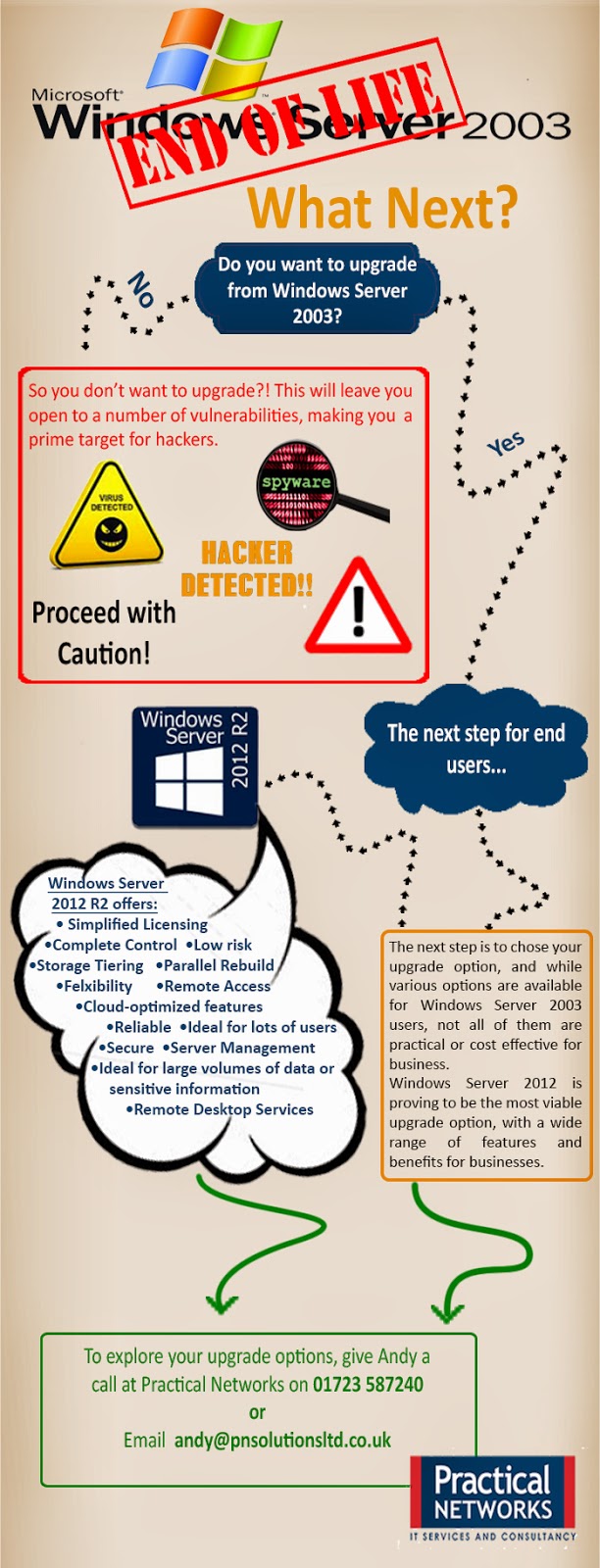
Windows Server 2003 End of Life - Be Prepared!

Last year we saw Microsoft retire both Windows XP and Office 2003 and this year will see Microsoft retire yet another product. Windows Server 2003 is the latest Microsoft product nearing its end of life date of July 14, 2015.

What does End of Life mean for end users?
Every product we use is likely to have a lifecycle, and Microsoft products are no different. All that Microsoft mean by the end of life of any of their products, Windows Server 2003 included, is that Microsoft will no longer support the product. Ultimately this means that Microsoft will no longer provide automatic fixes, updates or online technical support for retired products. 

After July 14, 2015 Windows Server 2003 will no longer receive assisted technical support from Microsoft, software and content updates or the security patches that help provide protection from harmful viruses, spyware and other malicious software, thus resulting  in an unsecured and unstable infrastructure for your business. Not migrating away from Windows Server 2003 will expose you to an elevated risk of cybersecurity dangers or malicious attacks.  


Continuing to use an unsupported server operating system would not only leave you vulnerable to hackers and security attacks, but it could end up costing your business a small fortune in maintenance costs. After July 14, 2015 you will need intrusion detection systems, advanced firewalls and network segmentation  to protect the vulnerable Windows Server 2003 platform, and the cost for maintaining ageing hardware will continue increasing with time. Also you may find that using an unsupported server operating system will result in a failure to meet industry wide compliance standards, which could ultimately result in a loss of business.

Another reason to migrate away from Windows Server 2003 before the end of life date is the fact that new software and hardware devices will no longer be built to integrate with Windows Server 2003, thus resulting in compatibility issues when updating software or hardware.

Act Now – Discover your upgrade options
As we explored above it is highly unadvisable to continue using Windows Server 2003 after it reaches its end of life, and so the only remaining option is to upgrade.  It is important to start your upgrade early as it will take a lot of planning and executing, and leaving it until the last minute is a big risk to take.

Here are the four key steps for migrating away from Windows Server 2003 as; discover, access, target and migrate.  


 Step 1 – Discover:
It is highly recommended that you start by finding out and cataloging the applications and workloads you have running on Windows Server 2003. It is vital that you catolog everything that you have running on Windows Server 2003, as this will help insure that nothing is omitted from the migration.

Whether you use the Microsoft self-service toolkit or collaborate with a Microsoft Partner this process is a lengthy yet essential part of the migration planning.

Step 2 – Assess:
Once you have a complete catalog of applications and workloads, it is time to assess its contents. This means categorising and analysing your applications and workloads based on four key factors, type, importance, complexity and risk. This assessment will allow you to prioritise workloads and applications for migration, while also helping identify and issues.

Step 3 – Target:
In this step you need to determine a migration destination for each application and workload. The choice of destination will be driven by factors such as speed, ease of migration, cost and desired functionality, with the most common choice being Windows Server 2012 R2.

Step 4 – Migrate:
The final step is to execute the migration, however finding the right migration plan may require additional analysis and assistance. Such assistance is available from Practical Networks a trusted Microsoft Partner.

If you would like more information or any assistance with your migration, please do not hesitate to get in touch with either David Philps or Andy Potts on 01723 587240.
Thursday, 4 December 2014

Setting up Automatic Replies and Auto-forwarding in Outlook

Automatic Replies and Auto-forwarding in Outlook

Taking some hard earned time off this Christmas? Then why not set up Automatic Replies in Outlook, to avoid having to check your emails from home. Automatic replies are a great way to let people know that you are out of the office and pointing them in the right direction of where they can get the assistance they need. Your automatic replies can be tailored to internal and external contacts to ensure everyone gets the information that is relevant to them.


Here’s how to set up Automatic Replies…
  • Firstly you  need to locate the Automatic Replies button, you can find it by clicking the file tab.

  • Clicking the Automatic Replies button will open a dialog box which allows you to set a time period for the replies to be sent out. (this is optional as they can be turned on and off manually)
  • The next step allows you to create two replies, one for people inside your organisation and another for people outside your organisation. This gives you the option to tailor your replies for customers and colleagues.                                                                                                                
  • You also have the option to restrict your replies to either outside or inside contacts only. Once you have typed your reply in the relevant box click ok and you are finished.
Auto-forwarding is another useful tool for when you are out of office. If you are lucky enough to have someone handling your emails while you are out of the office, this is a handy rule to set up, as it will forward all your mail to a specific person or group of people. To set up Auto-forwarding follow the steps below:

  • Firstly click the file tab and select the Manage Rules & Alerts option.
  • This will open the Rules Wizard window, where you need to click the new rule option.                      
  • In this dialog box you need to select Apply Rule on messages I receive option, found under the Start from a blank rule section.
  • The next dialog box allows you to set specific conditions, check the necessary boxes to add the required conditions.
  • To specify rule descriptions click on the underlined links underneath the list of conditions. This will open another dialog box where you can enter values for the conditions.                                 
  • Select the forward to people or public groups option and click the underlined link. This will allow you to enter the email address that you would like to forward to.
  • In the next step you can create exceptions to the rule.
  • Finally name your rule and click finish.


 Outlook has a number of useful tools to help you get the most from your emails, we hope you find these two to be useful.

Thursday, 18 September 2014

So What is OneNote?

So what is OneNote?

OneNote is an application designed for note taking, and is often overlooked in favour of Microsoft Word. However OneNote is set apart by its interface, which offers flexibility in the organisation of your notes. The layout is essentially that of a notebook, the pages automatically divide into notebooks, sections, pages and subpages, thus lending itself to easy organisation and reorganisation of vital information. OneNote is designed to allow text to be inputted anywhere on a page, as you would in a hand written notebook.

OneNote may also be seen as a collaboration tool as it also allows users to save images, tables, audio and other forms of communication in a free-form document.  When importing files such as Excel spreadsheets, images or Visio diagrams, OneNote stores a copy of the original file directly to the notebook while also allowing for editing. 

OneNote also saves all notes to your OneDrive online storage account, allowing access from a wide range of devices.

OneNote’s benefits include:


Email linking – Outlook includes a OneNote icon in the ribbon of email messages, allowing you to browse and choose where you would like to save the email within OneNote. This allows for emails to be linked to corresponding projects for ease of access.

Charts & Graphs – OneNote offers its own chart tool or allows you to import charts and graphs from applications such as Excel or Word.

Built in OCR – If you have an image in which you only need the text, paste the image into a OneNote document and choose the copy text from picture option. You will instantly get a plain text version of the text within the image that you can paste into a notebook or word document.

Collaboration – OneNote has a sharing feature which allows multiple users on a network to connect to the same notebook for viewing or editing purposes. Notebooks can have many authors and masses of information, so OneNote automatically highlights recent changes and lists the authors of new material for ease of collaboration.

Information storage and retrieval – OneNote has a built in search feature, which begins displaying results as you type, allowing for quickly locating files. Users can also add keywords to audio and video files in order to aid others in quickly locating and viewing the media. Searches can be altered to span the entire history of the application or to focus on specific notebooks or groups of notebooks.

All of these benefits aid productivity in the work place by allowing a wide range of media and information to be stored, organised and viewed in one place.


So if you have the Microsoft Office Suite, why not try OneNote now? You’ve got it already.

Wednesday, 10 September 2014

Windows 8 - The Business Benefits!

Windows 8

Designed to meet its users’ need for speed, multi-device access and touch screen capabilities, Windows 8 has essentially improved on the Windows 7 fundamentals, and is re-imagined to support a number of different working styles. With a range of new features Windows 8 offers a number of benefits to businesses.


The Benefits:

The Layout:
Windows 8 is sporting a completely new layout to all previous versions of Windows, as well as a new app model. The design makes it easier for businesses to create their own line-of-business apps to help improve productivity, by allowing you to place all the information you need on the start screen. The start screen can be organized to group your apps and information, thus making everything you need, easy to find.

Available on a range of hardware:
Windows 8 will run on an extremely wide range of devices, from tablets to laptops, to desktop PCs with large, high definition screens, thus allowing users to pick the device that works best for them. Therefore making Windows 8 convenient and versatile, whether you work in the office, at home or out and about.

Flexible:
Microsoft has also added cloud connectivity to Windows 8, allowing for users to start a project on one PC and finish it on another with ease. Using the cloud to store your information dissolves the boundaries between devices, allowing you to access your information from any Windows 8 device, simply by signing in with your own Microsoft account.

Windows to go:
Windows to go is a fully manageable corporate Windows 8 environment and is a feature specific to Windows 8 Enterprise. Giving users the capability to boot and run Windows 8 Enterprise on compatible devices, from mass storage devices such as USB drives.  Unlike many other mobility solutions Windows to go allows you to be productive from almost any location you choose to work.

Windows 8 offers numerous other benefits and features such as:
• Direct Access
• Enhanced end-to-end security
• Built in mobile broadband features
• Manageability and virtualisation advancements


Windows 8 delivers enterprise-grade capabilities that IT departments need, by combining the power and familiarity of the desktop, with new ways for users to interact with line-of-business apps and offering support for more mobile form factors. All of its features are designed to aid production and keep your data secure.

Ready to make the switch? Then why not call us on 01723 587240 for a quote.