Quality IT, Advice, Support and Delivery

Showing posts with label data security. Show all posts

Thursday, 17 March 2016

SQL Server 2005 End Of Life

Last year we saw Microsoft retire Windows Server 2003 and this year will see Microsoft retire yet another product. SQL Server 2005 is the latest Microsoft product nearing its end of life date of April 12, 2016.


What does End of Life mean for end users?
Every product we use is likely to have a lifecycle, and Microsoft products are no different. All that Microsoft mean by the end of life of any of their products, SQL Server 2005 included, is that Microsoft will no longer support the product. Ultimately this means that Microsoft will no longer provide automatic fixes, updates or online technical support for retired products.

After April 12, 2016 SQL Server 2005 will no longer receive assisted technical support from Microsoft, software and content updates or the security patches that help provide protection from harmful viruses, spyware and other malicious software, thus resulting in an insecure and unstable infrastructure for your business. Not migrating away from SQL Server 2005 will expose you to an elevated risk of cybersecurity dangers or malicious attacks.

What are the options?
Literally speaking you have two options, you can upgrade to a newer version of SQL Server or you can continue to use an unsupported SQL Server 2005. However it is highly advisable that you do upgrade, not only for security reasons, but also because continuing to use an outdated system can cause compliance issues and end up costing a small fortune in maintenance costs.

Why upgrade?
Continuing to use out of date software poses potential security risks and is likely to make you a prime target for hackers, as it is easier for cyber criminals to exploit vulnerable software. After April 12, 2016 it is highly likely that you will need to invest in extra security to protect the vulnerable SQL Server 2005, and the cost for maintaining aging hardware will continue to increase with time. Another key reason to upgrade is compliance, many compliances require up-to-date, patch databases, just like they do with the operating system.

Additionally software has progressed since the release of SQL Server 2005 and so there are significant improvements and features that have been added to newer versions of SQL Server. For example SQL Server 2014 provides higher availability and scalability, with dramatic performance improvement, compared with the soon to be outdated SQL Server 2005. The benefits of upgrading to a modern data platform far outweigh the costs of maintaining security, support and compliance for an unsupported database.

Act Now – Upgrade
Upgrading is an opportunity to provide new value to your business, by enabling you to achieve breakthrough performance.

Here are the three key steps for upgrading away from SQL Server 2005:  discover, target and upgrade. 

Step 1 – Discover:
It is highly recommended that you start by determining which applications are running SQL Server 2005. This process can be done using the Microsoft Assessment and Planning Toolkit or by collaborate with Practical Networks, a Microsoft Partner, who will be able to assist with the whole
upgrade.

Step 2 – Target:
In this step you need to determine a migration destination for each application, whether on-premises, virtualized or in the cloud. The choice of destination will be driven by factors such as speed, ease of migration, cost and desired functionality, with the most common choice being Windows Server 2012 R2.

Step 3 – Upgrade:
The final step is to plan and execute the upgrade, this may require additional assistance. Such assistance is available from Practical Networks a trusted Microsoft Partner.

If you would like more information or any assistance with your upgrade, please do not hesitate to get in touch with either David Philps or Andy Potts on 01723 587240.

Monday, 30 November 2015

7 ways to spot a Phishing Email

One of the most common ways to contract a virus or infection on your PC or Laptop is through phishing emails. Typically Phishing emails are designed to look like they are from a well-known and trusted company, usually banks, financial organisations or couriers, in order to trick you into providing sensitive information. 

Here's 7 ways to spot a Phishing Email:

  1. Emails often contain links, phishing emails are likely to contain links with mismatched URLs. In Outlook if you hover your mouse over the top of any URLs this will display the actual hyperlinked address. If the hyperlinked address is different to the address displayed in the email, it is highly likely that the message is fraudulent or malicious.                    
  2. Emails filled with spelling mistakes and poor grammar are likely to be fraudulent. Spelling mistakes are one of the most common signs that an email isn’t legitimate, as legitimate companies would normally have editors who review their marketing emails carefully before sending them out.                
  3. A prompt for personal information should be a warning sign, no matter how legitimate the email may look! Regardless of who you bank with, your bank will never email you to ask for your personal details.                                                                 
  4. A common type of phishing email is one that appears to be from a delivery company with attachments or links portrayed as tracking information. If you are not waiting for a delivery or don’t recognise the details in the email it is safest to just delete it.                                        
  5. Phishing emails often try to trick you into clicking a link by claiming that your account is on hold or that there has been some fraudulent activity that requires your immediate attention. The best thing to do in this case is to delete the email and just log into the account in question, by visiting the appropriate website, and then checking your account status.                                                                                                                                                        
  6. If you get an email saying you have won a contest that you didn’t enter, the chances are that this is a scam. No matter how inviting the prize may look avoid clicking the link and certainly don’t provide any of your personal details.                                                                                                                       
  7. Emails from financial organisations such as; banks, PayPal, eBay etc. will address you by name and so watch out for emails addressed "Dear Valued Customer" as these are likely to be fraudulent.

Thursday, 12 November 2015

Phishing FAQ's

What is Phishing?
Phishing is a type of online identity theft, which typically uses emails and fraudulent websites, in order to steal information such as credit card details, passwords, account details and other personal information. Phishing emails and websites often falsely claim to be an established legitimate enterprise in an attempt to get you to share your private information.

How does phishing work?
Phishing works by pretending to be from a legitimate enterprise, such as banks, or other websites where you may have cash or credit card details stored, with the key aim of acquiring your private information. Criminals can then use the information provided for many types of fraud, such as steal money from your account, open new accounts in your name or to obtain official documents using your identity.

The most common form of phishing is fraudulent emails, prompting the recipient to “confirm your password”, “verify your account” or “confirm your identity”. Such emails are linked to fraudulent websites that are designed to look like those of legitimate enterprises or links that, once clicked, will download a virus or spyware onto your computer without your knowledge.

Can a phishing scam contain official company logos?
The simple answer is YES! Phishing scams almost always try to mimic established legitimate companies, the scam relies on people being tricked into thinking they are actually being contacted by the company. It is relatively simple make a website look like that of a legitimate organisation by mimicking the HTML code or to copy company logos.

How can you protect yourself against identity theft?
There are a number of precautions you can take to avoid becoming a victim of a phishing scam, and here they are:
  • Avoid clicking links in email messages
  • Type website addresses directly into your browser, to ensure you know you are on a legitimate website
  • Avoid entering your personal or financial information in pop-up windows
  • Keep your computer software current with the latest security updates
  • Never give out sensitive information
  • If you are worried about an account, call the company or organisation directly to inquire about it
What should you do if you receive a phishing email?
If you receive an email that you believe to be a phishing email, the best practice is not to respond and to simply delete the email. Alternatively you could report it to the company the email is mimicking in order for them to warn their customers.

What should you do if you think you are a victim of a phishing scam?
There are a number of steps you should take if you believe you have fallen victim to a phishing scam, such as:
  •  Changing your passwords and secure answers for any potentially compromised accounts should be done immediately
  • You may want to contact your bank or financial adviser to alert them to the fact that your accounts may be compromised, this will allow you to put a fraud alert on your accounts
  • Regularly monitor your emails and financial statements so that you can identify any false charges or suspicious activity as soon as it appears
  • Run a full virus scan on your computers, to ensure you don’t have any viruses or spyware that could potentially steal your personal data
Do phishing attacks only happen through email?

While email is the most common form of phishing attack, this is not the only way phishing is carried out.  Another form of phishing attacks is malware, some malware can track how you use your computer and send valuable information to identity thieves. Phishing attacks can also occur through phone calls, texts and instant messages. It is vital that you remain cautious when asked to provide your credentials and other personal information.

Thursday, 30 April 2015

Cybersecurity & Mobile Security Tip for Businesses!

Cybersecurity is becoming more and more of an issue for businesses, as security attacks are evolving at an alarming rate. Last year in particular saw a number of high profile security breaches, such as; Heartbleed and Shellshock, positioning cybersecurity as a major concern for businesses and individuals alike. So here are 10 tips on how to protect your business against cyber-attacks:

1.       Establish basic security practices and educate all of your employees in these practices. This will help ensure all of your employees understand how to handle and protect vital business and customer information.

2.       Make sure all computers and networks are protected, by making sure that anti-virus, anti-spyware and firewall software is installed and kept up to date on all corporate PCs. It is also in good practice to schedule regular anti-virus scans on all PCs.

3.       Protect your internet connection with firewall security and make sure that firewalls are maintained. It is also important to make sure that employees who work from home have a secure internet connection.

4.       It is vital to keep your operating system and all your software up to date, by installing the latest updates and security patches. Updates can be set to install automatically, saving time and ensuring they are installed as soon as they are available. (Cyber criminals will take advantage of vulnerabilities found in out of date or unpatched software)

5.       Employ some form of disaster recovery and backup strategy, to regularly backup all of your data. In the case that your computer does become infected, you will be able to restore all your files once the malware has been deleted.

6.       Don’t allow unauthorised individuals to use business computers and secure your Wi-Fi network with passwords (preferably not the password that the device came with).

7.       Ensure all employees use a strong password, one that uses a mix of numbers, upper and lower case letters and symbols. Also make sure passwords are changed regularly.

8.       Limit employee’s access and authority according to their roles. Only provide access to the specific data systems that are needed to carry out their roles.

9.       Make sure all employees know to avoid opening emails or email attachments from unknown sources or that don’t appear to be legit. It is often the case that email attachments carry malware so be cautious and one infected PC could put the whole network at risk.

10.   Enforce strict rules about installing new software and only install software from trusted sites. 


       The number of businesses allowing for BYOD is increasing, and so it is important for them to keep their data secure on all devices. Malware is not just a problem for PC’s, as cybercriminals have taken to hiding their malicious codes inside mobile apps. So we have some Security Tips to protect your Mobile Workforce.

7 Tips for a Secure Mobile Network:

1.       Don’t let mobile security be your blind spot; mobile devices need the same protection as your corporate PC’s, so implement security precautions on all mobile devices.

2.       Add security measures to your wireless network - a password or security key can keep unauthorised devices from accessing your wireless connection. Encryption technology can also help, by protecting the information transmitted through your network.

3.       Encourage employees who use mobile devices for business purposes, to password protect their devices and set them to lock within five minutes. Passwords act as a first line of defence should the device fall into the wrong hands.

4.       Educate your users about carefully examining app permissions before granting access. Most apps ask for access to many unnecessary features on your device.

5.       Develop a policy item to determine which apps can be downloaded or accessed via the corporate network. If an app has a weakness it is easier to hack, posing a threat to your corporate security.

6.       Lose it, Lock it, Wipe it - download an app on your mobile devices that allows you and your employees to lock and wipe the device in the event of theft or loss. Should your device be gone for good such apps will enable you to wipe all of your data including text messages, contacts, photos, email, browser history and user accounts.

7.      Update apps as soon as you are prompted to, as updates can include fixes to new vulnerabilities and exploited security gaps.

For any more information on how to keep your corporate date secure, contact one of the team on 01723 587240


Thursday, 16 April 2015

Mobile Security - A Business Must Have!

Mobile security is becoming increasingly more important for businesses; due to the significant increase in bring your own device (BYOD) workforces. Companies put a lot of effort into building up their network defences for PCs, however most seem to overlook smartphone security, but there are now a great deal more mobile devices than PCs.


The BYOD policy has completely changed the way in which organisations need to approach their network security. Mobile devices have the ability of working inside and outside of the corporate network and can automatically connect to the corporate system, accessing sensitive data and then connect to other networks outside of the organisation. This is all done while bypassing the intense security measures built for PCs, potentially exposing your company data. 


Symantec’s 2013 Norton Report showed that nearly half of smartphone and tablet users don’t use basic precautions such as passwords and security software and that 57% were unaware that security solutions are available for mobile devices. Also according to a study from BT, 41% of UK organisations were hit by mobile security breaches. These are worrying statistics for organisations which allow for BYOD, and so it is important to make sure everyone in your organisation is aware of the importance of mobile security.


Loss and theft both pose a big threat to mobile security, as mobile devices are more vulnerable to loss and theft than PCs. Once lost or stolen any corporate data is at risk without proper security in place, such as passwords, encryption, multi-factor authentication app or apps that allow you to remotely wipe your device in the event that it is lost or stolen. 

Applications also pose one of the biggest threats to mobile security as the number of organisations building their own apps to fit their business needs is growing, with 48 % of businesses expecting to increase their mobile app budgets. Purpose built apps are useful for businesses, however they are also the weakest point of entry for cyber-criminals. Applications have to ask for access to many features on your device, however very few users examine these permissions, making it easier for malicious app developers to gain unnecessary permissions.

While applications, loss and theft pose some of the biggest threats to mobile security there are other threats that you need to protect yourself from. Lookout have suggested that mobile security threats usually fall into one of the following four key categories; application-based, web-based, network-based and physical. Each of these categories can be broken down into further threats, details of which can be found here.

Keep watching our blog for tips on how to keep your business protected from mobile and cybersecurity threats.


Thursday, 2 April 2015

Cybersecurity set to be big issue for Businesses...

Last year saw a number of highly evolved cyber-attacks and data breaches across the globe, with server vulnerabilities such as Heartbleed and Shellshock taking center stage. As a result of the number of high profile security breaches and cyber-attacks, Cybersecurity has been positioned as a key priority for organisations in 2015.

Cyber-security attacks are evolving at an alarming rate, and so the cyber-security products available to businesses are rapidly evolving to keep ahead of cyber criminals.  Therefore it is more important than ever for businesses to keep up to date with the latest versions and updates of their firewalls, antivirus software, intrusion detection/protection systems, VPNs or any other security they may have in place. On top of this it is a good idea for businesses to reassess their cybersecurity practices periodically to ensure they have the best protection available to them.

Cyber security threats come in a wide range of shapes and sizes, such as; malware injection, phishing, social engineering, internal stealing of data among others. However ransomware has been one of the most common forms of malware used over the past few years, and Symantec’s 2014 Internet Security Threat Report noted that ransomware attacks grew by 500 percent in the latter part of 2013. Scammers also continued to run profitable ransomware scams last year, with Cryptolocker making up 55 percent of all ransomware in October 2014 alone.

With the wide range of security products available for businesses, such as; anti-viruses, firewalls, encryption software, intrusion detection/protection systems, it is easy to overlook the need for secure passwords. Passwords still provide the first level of defence against hackers and so it is still important to make your passwords as secure as possible. So why not make sure your password isn’t on SplashData’s worst passwords of 2014 list:
  1. 123456
  2. password
  3. 12345
  4. 12345678
  5. qwerty
  6. 123456789
  7. 1234
  8. baseball
  9. dragon
  10. football
The full list can be found here… “Worst Passwords of 2014”


Thursday, 5 March 2015

Windows Server 2003 End of Life - Be Prepared!

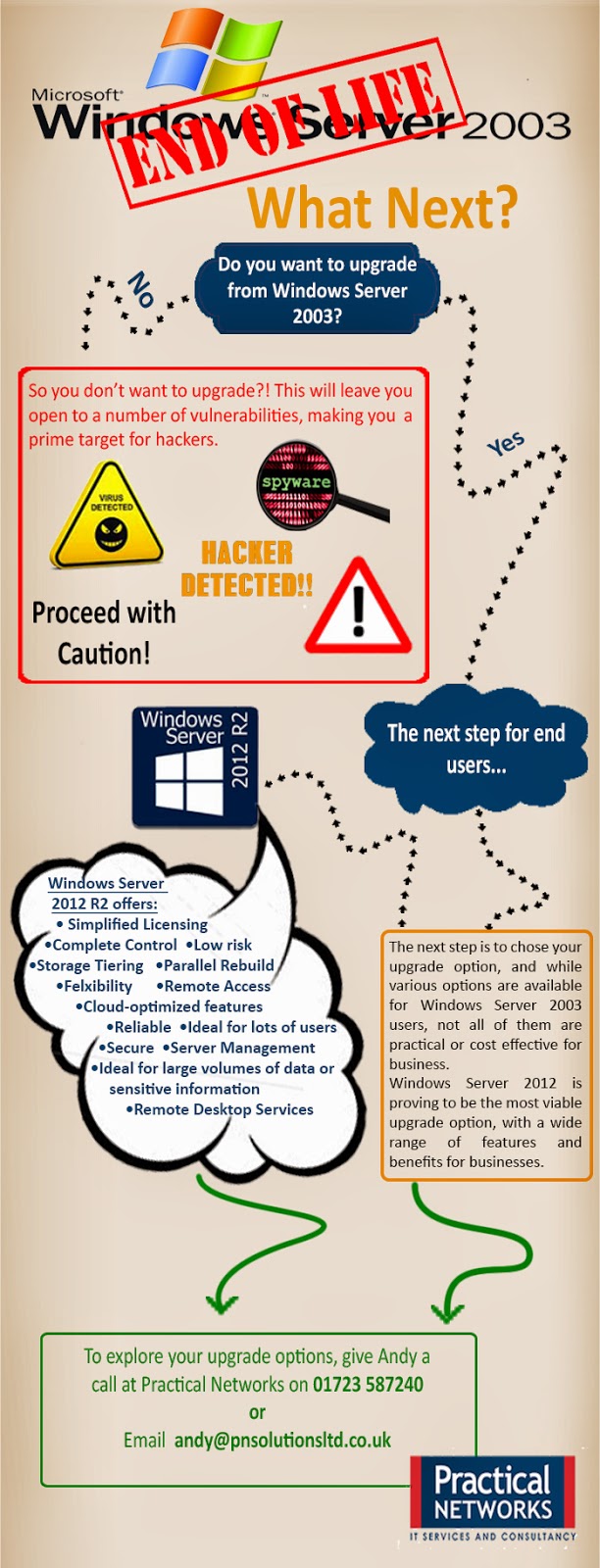
Last year we saw Microsoft retire both Windows XP and Office 2003 and this year will see Microsoft retire yet another product. Windows Server 2003 is the latest Microsoft product nearing its end of life date of July 14, 2015.

What does End of Life mean for end users?
Every product we use is likely to have a lifecycle, and Microsoft products are no different. All that Microsoft mean by the end of life of any of their products, Windows Server 2003 included, is that Microsoft will no longer support the product. Ultimately this means that Microsoft will no longer provide automatic fixes, updates or online technical support for retired products. 

After July 14, 2015 Windows Server 2003 will no longer receive assisted technical support from Microsoft, software and content updates or the security patches that help provide protection from harmful viruses, spyware and other malicious software, thus resulting  in an unsecured and unstable infrastructure for your business. Not migrating away from Windows Server 2003 will expose you to an elevated risk of cybersecurity dangers or malicious attacks.  


Continuing to use an unsupported server operating system would not only leave you vulnerable to hackers and security attacks, but it could end up costing your business a small fortune in maintenance costs. After July 14, 2015 you will need intrusion detection systems, advanced firewalls and network segmentation  to protect the vulnerable Windows Server 2003 platform, and the cost for maintaining ageing hardware will continue increasing with time. Also you may find that using an unsupported server operating system will result in a failure to meet industry wide compliance standards, which could ultimately result in a loss of business.

Another reason to migrate away from Windows Server 2003 before the end of life date is the fact that new software and hardware devices will no longer be built to integrate with Windows Server 2003, thus resulting in compatibility issues when updating software or hardware.

Act Now – Discover your upgrade options
As we explored above it is highly unadvisable to continue using Windows Server 2003 after it reaches its end of life, and so the only remaining option is to upgrade.  It is important to start your upgrade early as it will take a lot of planning and executing, and leaving it until the last minute is a big risk to take.

Here are the four key steps for migrating away from Windows Server 2003 as; discover, access, target and migrate.  


 Step 1 – Discover:
It is highly recommended that you start by finding out and cataloging the applications and workloads you have running on Windows Server 2003. It is vital that you catolog everything that you have running on Windows Server 2003, as this will help insure that nothing is omitted from the migration.

Whether you use the Microsoft self-service toolkit or collaborate with a Microsoft Partner this process is a lengthy yet essential part of the migration planning.

Step 2 – Assess:
Once you have a complete catalog of applications and workloads, it is time to assess its contents. This means categorising and analysing your applications and workloads based on four key factors, type, importance, complexity and risk. This assessment will allow you to prioritise workloads and applications for migration, while also helping identify and issues.

Step 3 – Target:
In this step you need to determine a migration destination for each application and workload. The choice of destination will be driven by factors such as speed, ease of migration, cost and desired functionality, with the most common choice being Windows Server 2012 R2.

Step 4 – Migrate:
The final step is to execute the migration, however finding the right migration plan may require additional analysis and assistance. Such assistance is available from Practical Networks a trusted Microsoft Partner.

If you would like more information or any assistance with your migration, please do not hesitate to get in touch with either David Philps or Andy Potts on 01723 587240.

Thursday, 20 November 2014

DESlock - Encrypt your valuable data!


What is DESlock+?
DESlock+ is a simple to use, encryption application for companies and organisations of all shapes and sizes.  This software protects your data and helps your organisation comply with government encryption requirements.

Encryption is the process of encoding information in such a way that only authorised persons can read it. Therefore encryption is essentially an additional layer of data security, even in the event that your laptop is stolen, encrypted data is worthless to a hacker. 


DESlock+ Features:
  • Full Disk Encryption
  • Removable Media Encryption
  • DESlock+ Go Portable Encryption
  • File and Folder Encryption
  • Mail Encryption
  • Text and Clipboard Encryption
  • Virtual Disks and Compressed Archives
  • Encryption Key Management
  • Centralised Management
  • Enterprise Server Proxy 
Centralised Management: All commands, updates, status requests and responses are posted via the DESlock+ Enterprise Proxy, allowing management of any user or workstation with a standard internet connection. Thus, allowing you to maintain control of remote workstations with ease. DESlock+ also allows for remote management where the encryption policy can be changed without user interaction, encryption keys can be added or removed, full disk encryption can be started and users may be recovered or reset.

DESlock+ Go Portable Encryption: DESlock+ Go is an on-device application which runs straight from the USB stick, needs no install and, with the right password allows the user to edit, read and write encrypted documents on any PC. On top of this DESlock+ can also protect USB sticks and other removable media with full disk or file level encryption. Full integration with key management system ensures fast, silent operation.

File and Folder Encryption: This feature allows you to choose the files and folders you want to be encrypted and then all files moved to an encrypted folder will be encrypted automatically.

Mail Encryption: DESlock+ offers transparent email encryption for Outlook through a dedicate plugin, where the email can only be decrypted by recipients who share the same key as the sender.  DESlock+ also works with most text based applications, encrypting and decrypting directly into the active window or via the Windows Clipboard, this form of encryption works with any email client.


Client Side:
Data is a critical part of every organisation, but this most valuable asset often poses a huge risk when it travels or is transmitted beyond the corporate network. Full disk and removable media encryption protect laptop computers against the unexpected. File, folder and email encryption allow fully secure collaboration across complex workgroups and team boundaries, with security policy enforced at all endpoints by the DESlock+ Enterprise Server. Meet your data security compliance obligations with a single MSI package.

Server Side:
The DESlock+ Enterprise server can manage users and workstations together or independently. Activation, and changes to security policy, software feature-set, encryption keys and endpoint status are all handled, securely through the cloud keeping your most high-risk endpoints under close control at all times.  Home and mobile working make extending encryption security policy beyond the perimeter of your network a necessity. Only DESlock+ offers full control wherever your users are.

For more information about DESlock+ call Andy on: 01723 587240


Thursday, 25 September 2014

Cryptolocker - Don't Let It Hold You To Ransom

WARNING - RANSOMWARE!

Cryptolocker ransomware is spreading at a rapid rate, with business PC users being a primary target.

What is Cryptolocker?

Cryptolocker is a ransomware that encrypts files and charges a ransom to decrypt them. Below are examples of the prompt given once cryptolocker has taken hold of your files.  


How it spreads:

Cryptolocker spreads in two ways, via email attachments or as a secondary infection.

Email Attachments – Email attachments that require downloading are the primary tool used to spread cryptolocker. The emails often appear to be from a shipping company, for example; UPS, FedEx and Royal Mail, with the attachment portrayed as tracking information. See examples below:


Secondary Infection – PCs that are already affected by one or more viruses are more open to being infected with cryptolocker. This is because viruses offer a back door for further attacks. 

Prevention Advice:

Backup – It is always a good idea to make regular backups of important data, especially in this case. Backups can be set up to prevent the backup of infected files and provide a clear restoration point when files are lost or infected.

Limit – Limit access to important files, as this lessens the chance of them being encrypted.

Update – Maintain updates for your anti-virus, system and applications to keep your PC up to date and patched.

Educate – Make sure everyone in the office is aware of the dangers of phishing emails and suspicious email attachments.

Avoid – Avoid opening attachments you weren't expecting or from unknown sources.


If you would like more information, please do not hesitate to get in touch with us on 01723 587240.